
Every account. Clearly yours.
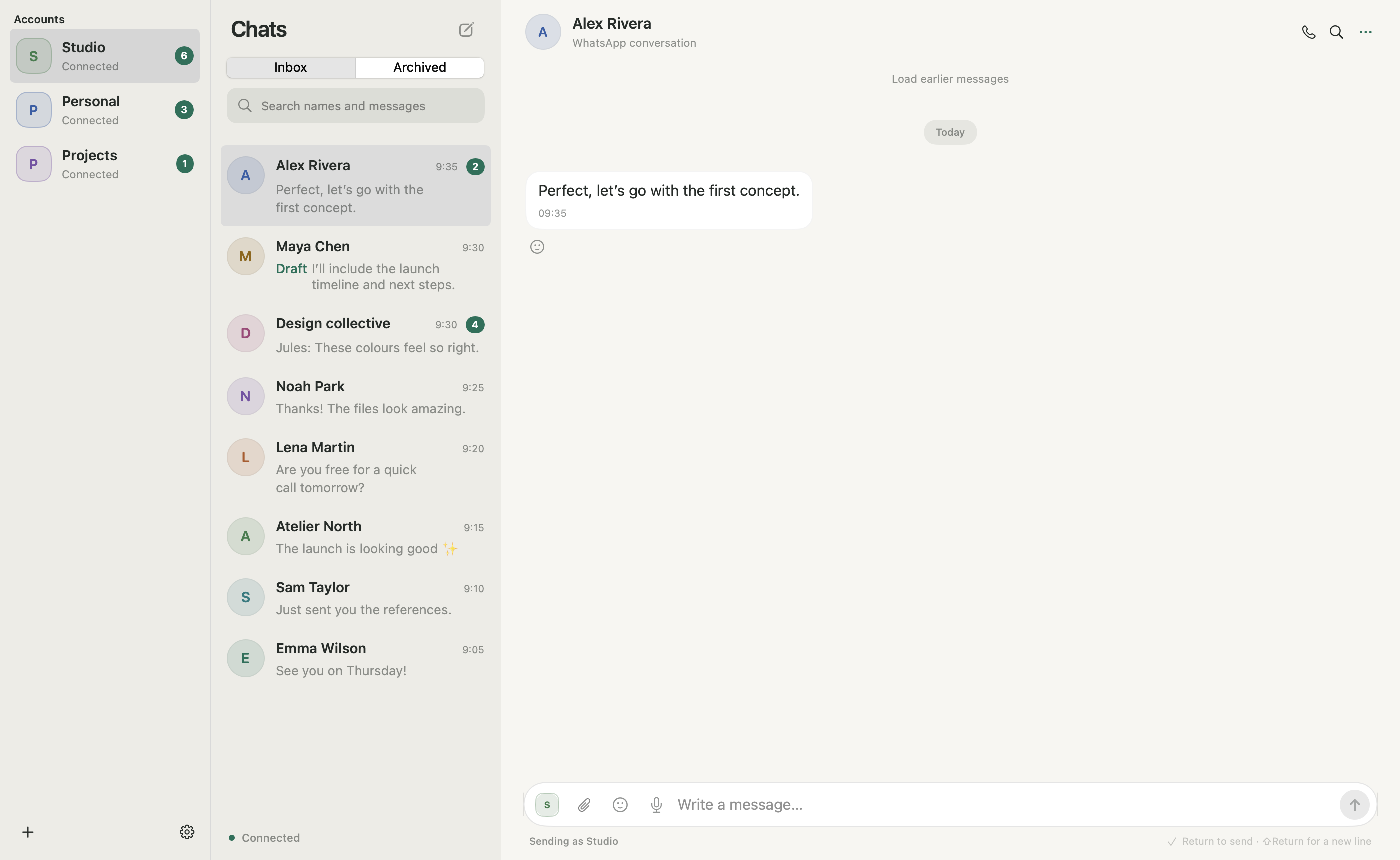
Personal and WhatsApp Business accounts, side by side. Distinct names, colors and photos keep your sending identity in view.
Run every WhatsApp and WhatsApp Business number in one Mac app.
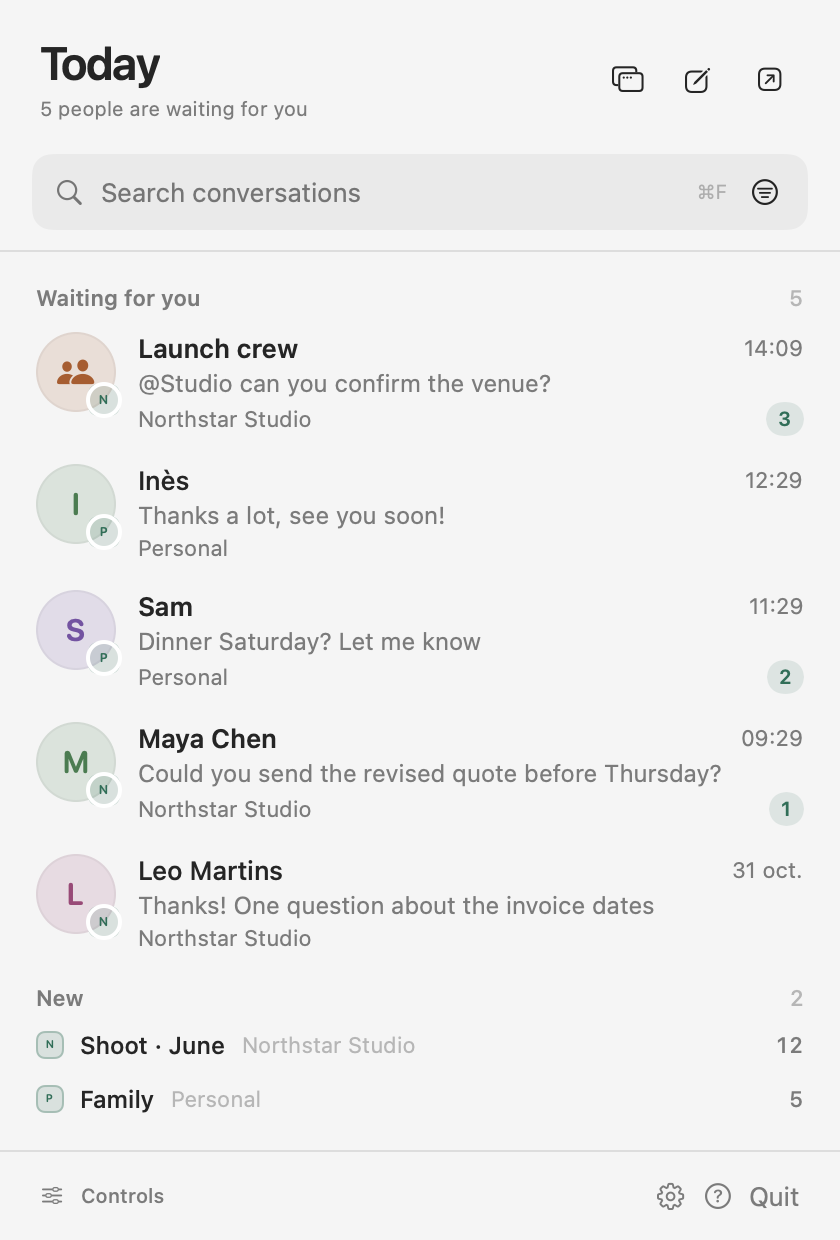
Orbit shows who is waiting across every account, turns what you promised into reminders and helps you answer in their language, with Apple Intelligence working on your Mac. On Pro and Studio, your own AI assistant can draft and send for you, and by default nothing goes out until you approve it.

A little less juggling.
A lot more headspace.
Orbit by SabaiDev is a native Mac app for professionals who run several personal and business WhatsApp accounts. Every number keeps its own identity, and one search covers them all.
Personal and WhatsApp Business accounts, side by side. Distinct names, colors and photos keep your sending identity in view.
Search every account at once with ⌘K: messages, what was said in voice notes and the text in pictures you read. A typo won’t stop you; prices and phone numbers stay exact.
Choose when read receipts go out: on opening, after replying, or never. Looking for a conversation doesn’t have to announce your arrival.
Clients abroad, suppliers, guests, family: talk to them the way they talk to you. Translate right on your Mac, and on Pro and Studio let Kepler or your own assistant take the languages Apple’s on-device models don’t read yet, like Lao.
On macOS 26 or later, right-click a message to translate it between English, French and Thai, or translate your draft before you send it, with undo. Nothing leaves your Mac.
For Lao and other languages, Kepler or your connected assistant reads the whole thread for context and drafts in native script or the romanized spelling people actually text in. Ask for a warmer tone or a politer form.
Read the reply, adjust it, then send it yourself or approve it. Approvals show the exact text with its meaning in your language. Assistant translations depend on the assistant you connect.
Orbit works with Spotlight, Shortcuts, Focus and Reminders, so your conversations show up where you already are. Chat names can appear in Spotlight; message text never leaves Orbit for the system index.
Type “Orbit” to search every account, or “Kepler” to ask about your chats. Your text opens in ⌘K; Kepler only runs when you press ⌥↵, with your own Claude plan.
Open a chat, list who’s waiting, summarize, translate or prepare a draft from Shortcuts. Orbit never sends from a shortcut. A Focus can show only the accounts that belong to it.
On Pro and Studio, pair Orbit with Apple Reminders: what a client asks and what you promise become reminders on their own, and sending the quote ticks it off. Follow up from your iPhone; edits made in Reminders win.
Your conversations live locally.
You decide what your assistant can access.
Find the context. Prepare the reply. Handle the follow-up, even in another language. Orbit’s built-in MCP server gives compatible assistants a way to help inside your workspace, with permissions you control. How the WhatsApp MCP server works
The recorded taskFind Maya’s request about the social media package in Northstar. Prepare a reply and let me approve the draft.
Recorded MCP executionOrbit’s real MCP adapter searches the isolated Northstar workspace for “social media package”.
Recorded results are loading.
orbit_searchorbit_context + orbit_uiorbit_message · setDraftorbit_get_action + orbit_queryRecorded execution with fictional data. No WhatsApp message was sent.
Replay of real MCP execution against an isolated native Orbit workspace with fictional contacts. The recorder used the actual adapter, dispatcher and draft executor; the fixture operator approved the actual pending action after capturing the native approval card. No WhatsApp message was sent. This is not a ChatGPT session or a live browser connection to your accounts. Connecting ChatGPT requires separate host setup, potentially a Secure MCP Tunnel. Voice audio and calls stay out of MCP; voice notes reach your assistant only as text transcribed on your Mac.
Choose the accountsGive your assistant a defined workspace.
Set the boundariesAsk, allow or deny supported operations.
Keep an eye on actionsReview activity and pending approvals.
From the first message of the morning to the last reply of the day. The essentials belong right where you need them.
Quoted replies, reactions, polls, locations, contact cards, disappearing messages, stickers, GIFs and several files with one caption.
Record and play voice notes inside the conversation. No need to reach for your phone to compose one.
Adjust themes, account colors, photos and conversation names to make your workspace feel like yours.
Text drafts are saved encrypted, and cached conversations stay on your Mac so you can pick up where you left off.
Native windows, keyboard shortcuts and macOS notifications. Built with SwiftUI and AppKit.
On Pro and Studio, Kepler prepares a reply in the chat’s own composer with your Claude plan, only when you ask. It never replaces what you typed, and nothing leaves until you press Send.
Save the replies you type every day, for one account or all of them. On Pro and Studio, Orbit suggests the right one on your Mac; it’s always your own text, never invented.
Voice notes count in Waiting and Promised, and their transcripts show up in search. On Pro and Studio, English and French notes are transcribed on your Mac while it’s plugged in.
On Pro and Studio with Apple Intelligence, a busy chat becomes a short summary on your Mac, each point linked to the message it came from.
Start with one account. Add more identities, or bring your AI assistant into the workflow. Try Pro free for 7 days.
$0/month
1 account
For your everyday conversations.
$7.99/month
3 accounts
Keep your different worlds close.
$19.99/month
5 accounts
Worth it with one account: nothing waiting slips, in any language.
$49.99/month
20 accounts
For managing several businesses from your own workspace.
Direct-Mac prices in USD, billed every 30 days through Whop; cancel anytime from your Whop billing page. All plans include the native workspace; local MCP starts with Pro. Pro starts with a 7-day free trial: Whop takes your card at checkout and charges the first 30 days on day 8 unless you cancel before. AI-host subscriptions are separate. Account allowances are commercial limits, not measured simultaneous-session capacity.
Orbit downloads each new version in the background and installs it when you restart. Here is everything since the first preview on October 21.

Orbit tells you when a new version is ready, so you never miss improvements. It shares no account or message data, and you choose when to install.
The assistant panel is now Kepler. Open it beside your conversation and keep chatting while it works.
Choose Keep Out of AI in a chat's menu and Kepler, connected AI assistants, on-device sorting and summaries can no longer read or act in it. Settings › Privacy lists those chats, and Allow AI brings one back.
Type “Orbit” to search every account or “Kepler” to ask about your chats. Your text opens in ⌘K so you see what will happen; Kepler only runs when you press ⌥↵. Chat names show up in Spotlight too, message text never does.

Help, Set Up Claude connects Claude Desktop in one click, gives you a first question to ask and takes you to its first draft. Claude asks before every draft, send or reaction.
New installs open on your chats, the conversation and Kepler with its agents and conversation list. Hide or resize anything and Orbit keeps your layout next time.
System, Mocha, Graphite, Pearl, your custom palette and more than 460 community themes now sit side by side as small previews of the window, instead of behind a separate library menu.
Right-click a chat, choose New Kepler Conversation and an agent: Kepler opens on a conversation about that contact. Nothing is sent to them.
Ask Kepler in the Kepler panel and its request waits there; ask from a chat's box and it waits above that box. No more second copy of the same card.
From linking your first number to connecting Claude: the complete guide to Orbit.


Your first account is free. Download the Mac preview.